---
title: How to update the days for reminder notifications.
description: How to Update the Days for Reminder Notifications
---
[Skip to content](https://help.paid.co.uk/knowledge/paid-lite-how-to-update-the-days-for-reminder-notifications#main-content)
[Customer portal](https://help.paid.co.uk/tickets-view?hsLang=en)

Open main navigation
Close main navigation
- [Customer portal](https://help.paid.co.uk/tickets-view)
Advice and Answers from the Paid team
- There are no suggestions because the search field is empty.
1. [Help Center](https://help.paid.co.uk/knowledge?hsLang=en)
2. [Help for Paid Lite](https://help.paid.co.uk/knowledge/help-for-paid-lite?hsLang=en)
3. [Administration](https://help.paid.co.uk/knowledge/help-for-paid-lite?hsLang=en#administration)
November 11, 2025
# How to update the days for reminder notifications.
You must have administrator privileges to update user settings. If you don’t have access, please contact your company’s **Super Admin.**
**Purpose -**To control when users get reminders related to: Uploading evidence, Approving payments or requests, Completing tasks or Any time-sensitive workflow.
1\) Log onto your account, which will take you to the dashboard;
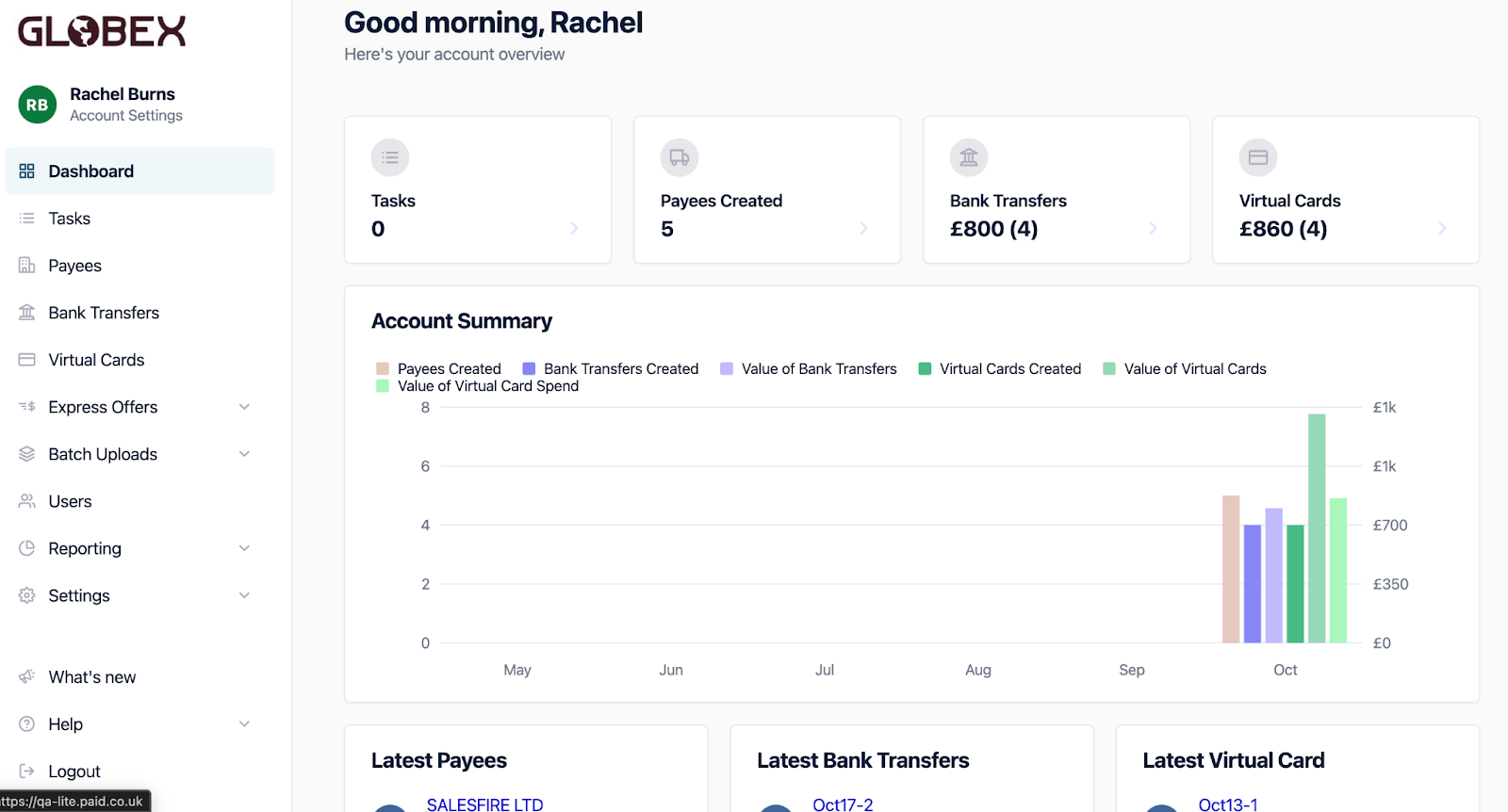
2\) From there use the menu on the left hand side, navigate to Settings -from the dropdown select ‘Organisation’;
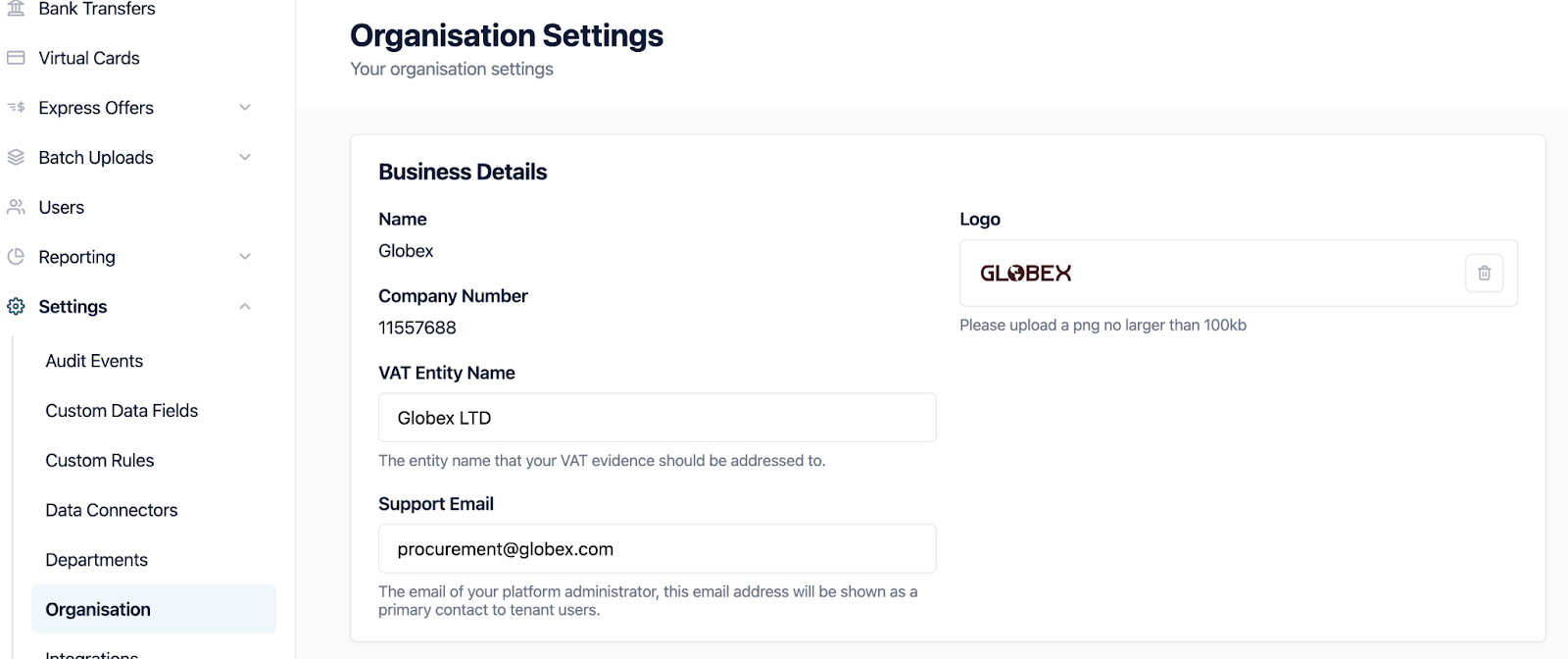
3\) Scroll down to ‘Task Reminder Settings’
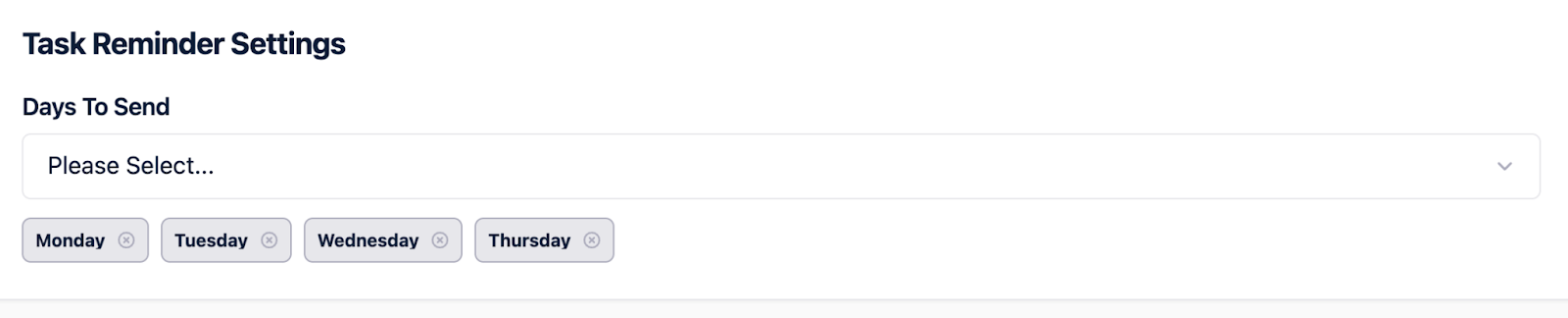
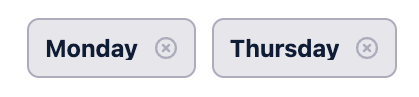
4\) To edit the days that reminders are issued simply click on the cross next to the days you no longer want reminders to go out on.
5\) To add days click ‘Please Select’ and choose from the dropdown,
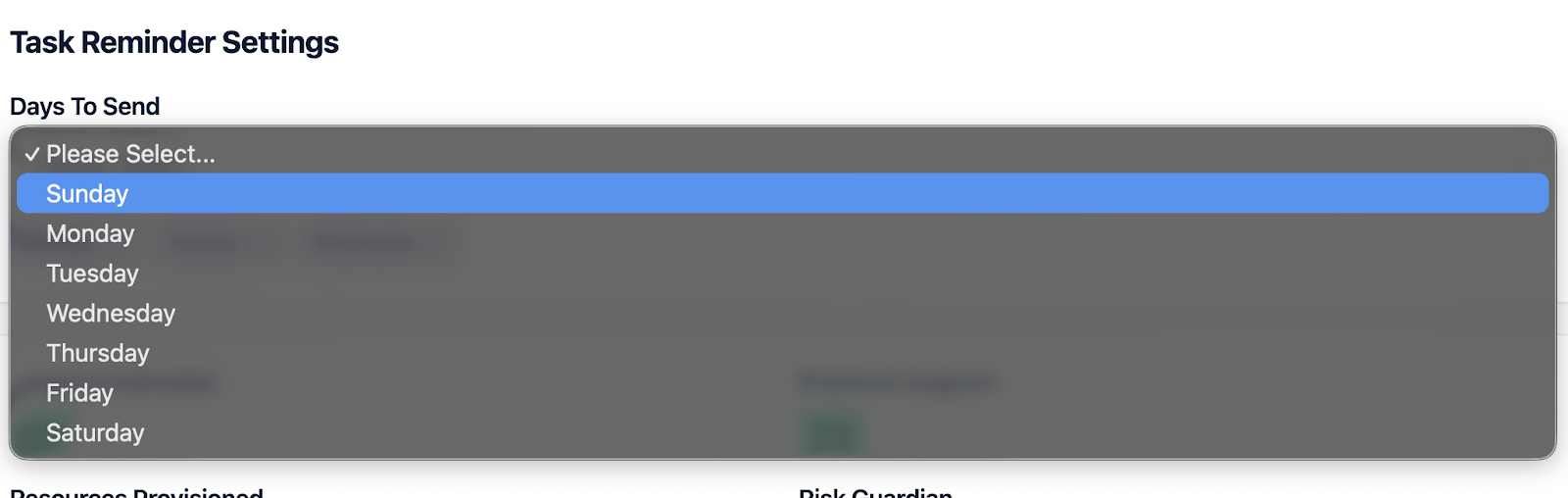
6\) Selected days will now show in greyed out boxes. Once you are happy with the days you have selected scroll down and click on ‘Updated’.
- [Help for Suppliers](https://help.paid.co.uk/knowledge/help-for-suppliers?hsLang=en#main-content)
- [About Paid for Suppliers](https://help.paid.co.uk/knowledge/help-for-suppliers?hsLang=en#about-paid-for-suppliers)
- [Account Details](https://help.paid.co.uk/knowledge/help-for-suppliers?hsLang=en#account-details)
- [Documents](https://help.paid.co.uk/knowledge/help-for-suppliers?hsLang=en#documents)
- [Payments](https://help.paid.co.uk/knowledge/help-for-suppliers?hsLang=en#payments)
- [Work](https://help.paid.co.uk/knowledge/help-for-suppliers?hsLang=en#work)
- [Help for Buyers](https://help.paid.co.uk/knowledge/help-for-buyers?hsLang=en)
- [Help for Paid Lite](https://help.paid.co.uk/knowledge/help-for-paid-lite?hsLang=en#main-content)
- [Manage Payees](https://help.paid.co.uk/knowledge/help-for-paid-lite?hsLang=en#manage-payees)
- [Manage Bank Transfers](https://help.paid.co.uk/knowledge/help-for-paid-lite?hsLang=en#manage-bank-transfers)
- [Manage Virtual Cards](https://help.paid.co.uk/knowledge/help-for-paid-lite?hsLang=en#manage-virtual-cards)
- [User Management](https://help.paid.co.uk/knowledge/help-for-paid-lite?hsLang=en#user-management)
- [Administration](https://help.paid.co.uk/knowledge/help-for-paid-lite?hsLang=en#administration)
- [Teams and Slack Notifications](https://help.paid.co.uk/knowledge/help-for-paid-lite?hsLang=en#teams-and-slack-notifications)
- [Authentication](https://help.paid.co.uk/knowledge/help-for-paid-lite?hsLang=en#authentication)
- [Reports](https://help.paid.co.uk/knowledge/help-for-paid-lite?hsLang=en#reports)
- [ID Verification](https://help.paid.co.uk/knowledge/help-for-paid-lite?hsLang=en#id-verification)
- [Road Map](https://help.paid.co.uk/knowledge/help-for-paid-lite?hsLang=en#road-map)
- [Legal Aspects](https://help.paid.co.uk/knowledge/help-for-paid-lite?hsLang=en#legal-aspects)
- [Express Payments](https://help.paid.co.uk/knowledge/help-for-paid-lite?hsLang=en#express-payments)
- [Accessing Support](https://help.paid.co.uk/knowledge/help-for-paid-lite?hsLang=en#accessing-support)
- [Legal Aspects](https://help.paid.co.uk/knowledge/legal-aspects?hsLang=en)
[](https://paid.co.uk/)
Paid Help Center
Copyright © 2025, Paid Technology Ltd.