---
title: How to update creation confirmations.
description: How to Update Creation Confirmations.
---
[Skip to content](https://help.paid.co.uk/knowledge/paid-lite-how-to-update-creation-confirmations#main-content)
[Customer portal](https://help.paid.co.uk/tickets-view?hsLang=en)

Open main navigation
Close main navigation
- [Customer portal](https://help.paid.co.uk/tickets-view)
Advice and Answers from the Paid team
- There are no suggestions because the search field is empty.
1. [Help Center](https://help.paid.co.uk/knowledge?hsLang=en)
2. [Help for Paid Lite](https://help.paid.co.uk/knowledge/help-for-paid-lite?hsLang=en)
3. [Administration](https://help.paid.co.uk/knowledge/help-for-paid-lite?hsLang=en#administration)
November 11, 2025
# How to update creation confirmations.
#### You must have administrator privileges to update user settings. If you don’t have access, please contact your company’s Super Admin.
**Purpose:** Creation confirmations are custom messages or prompts that appear when a user tries to: Add a new payee, submit a payment to a specific payee, engage with high-risk or sensitive payees. These confirmations help enforce internal checks, warnings, or policy reminders.
1\)Log onto your account, which will take you to the dashboard;
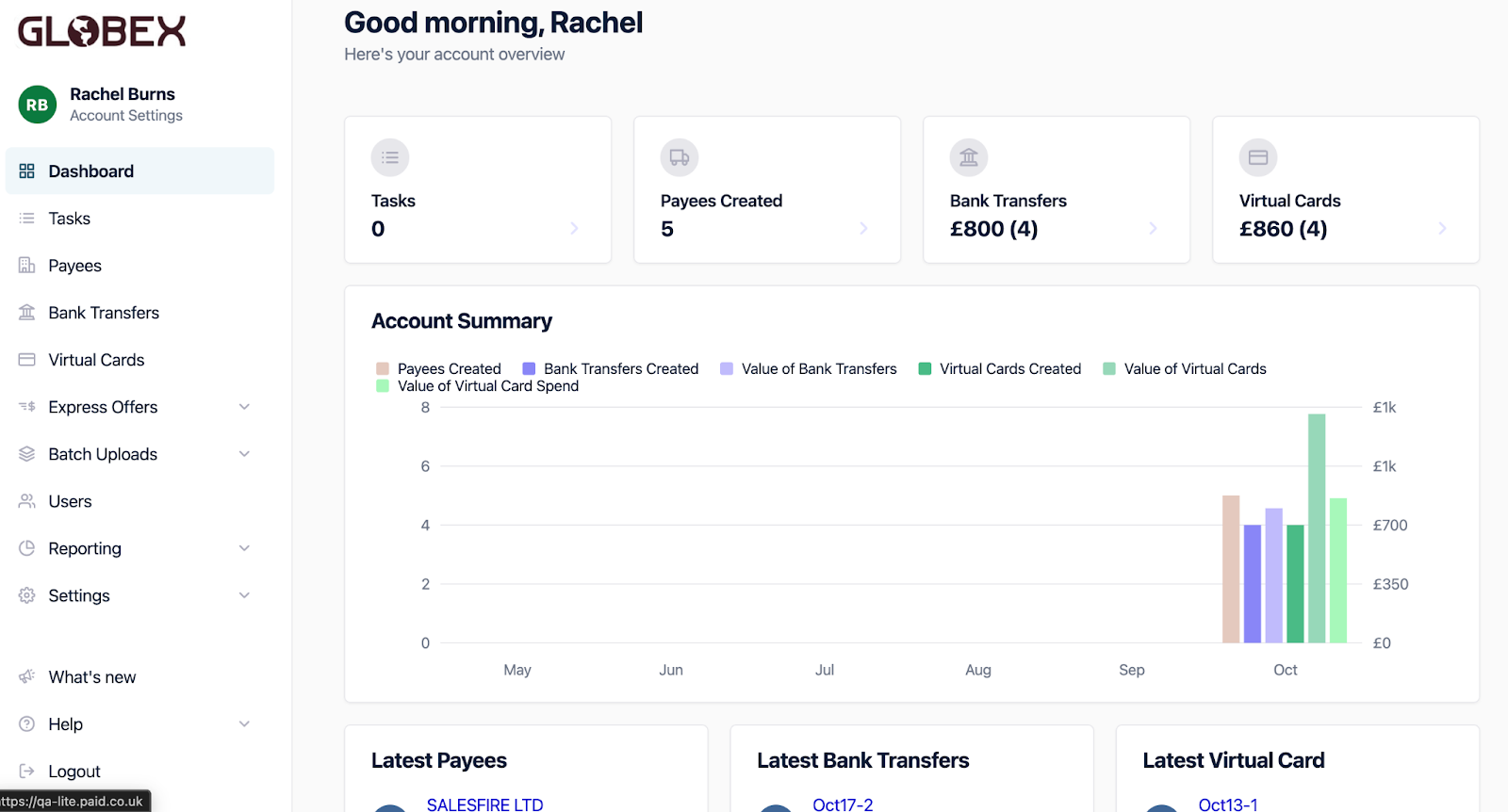
2\) From the dashboard please go into ‘Settings’ from the menu on the left hand side, from this dropdown go to Payees;
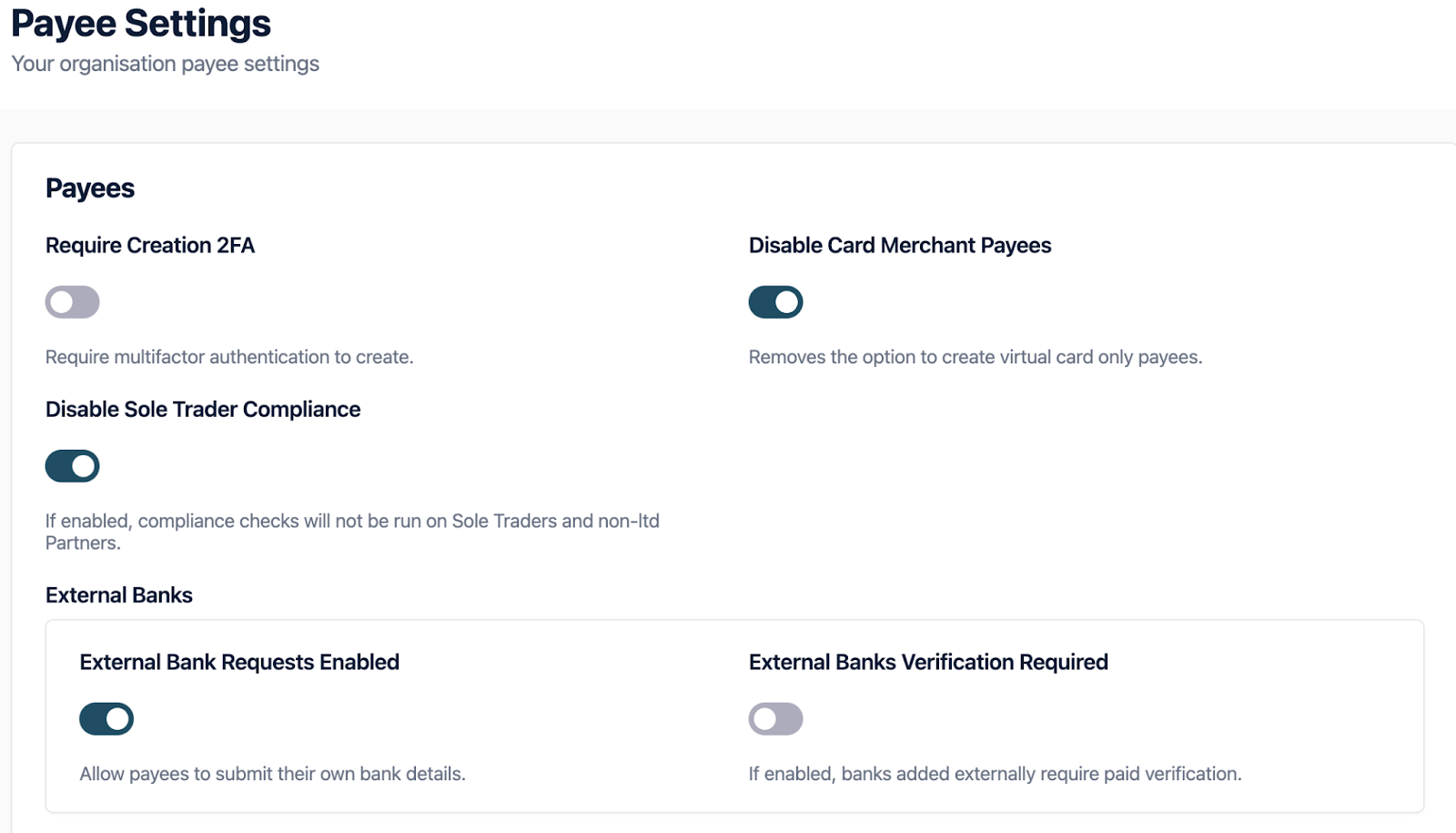
Scroll down the page to ‘Creation Confirmation’;

3\) Select ‘Add confirmation’ and a pop out will appear on the right hand side of the screen. When you are adding a new Confirmation you will be asked for; Title/Label, Description, Optional URL/link (e.g., policy page), Visibility (determine when and where the message is shown).
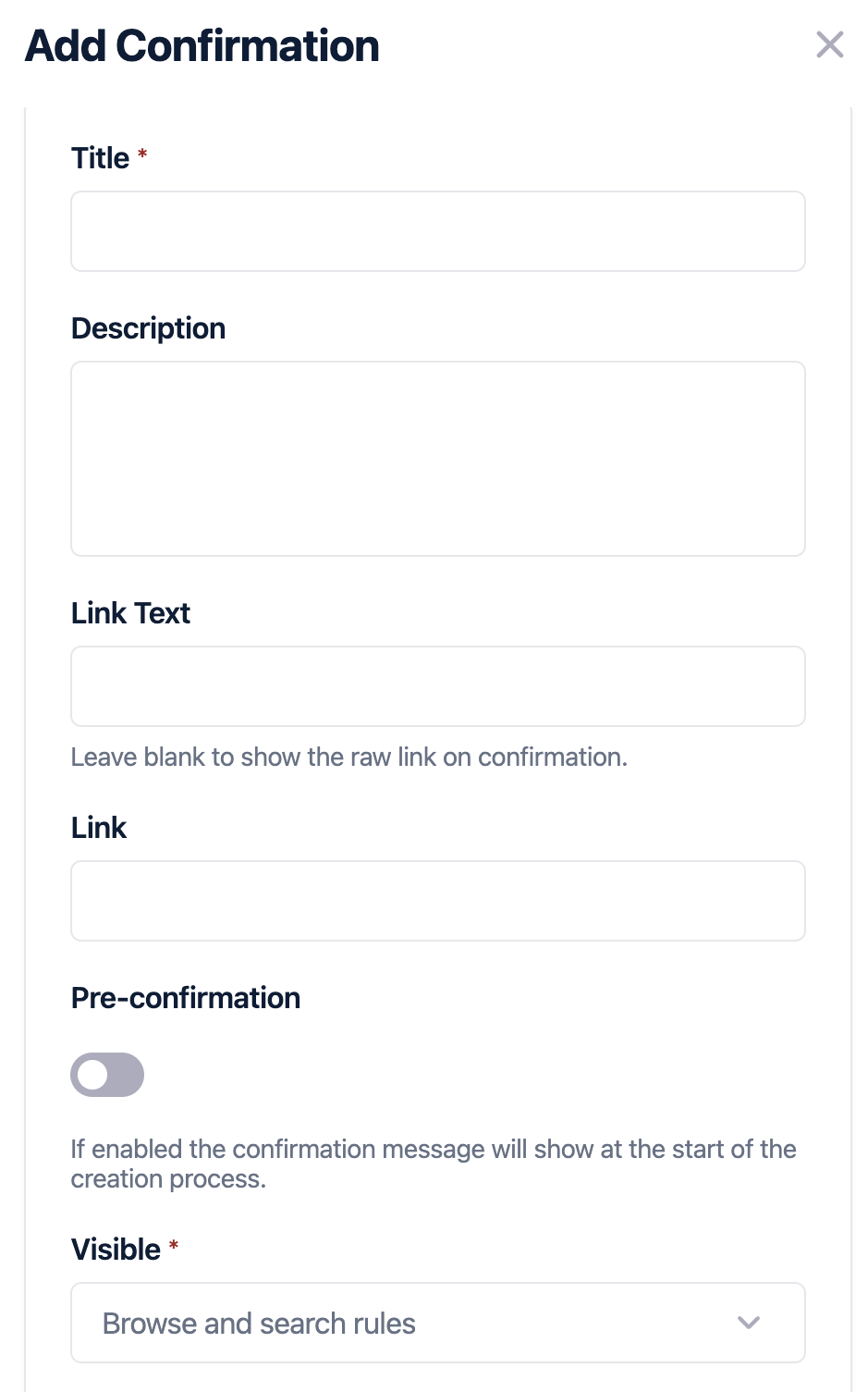
#### Before you set up the new confirmation, it is important to understand the two types of Confirmation Messages;
| **Type** | **Description** | **Where It would Appear** |
| --- | --- | --- |
| **Pre-confirmation** | Message appears **before** the user completes any steps in the card creation journey. | At the beginning (e.g., a compliance check pop-up). |
| **Post-confirmation** | Message appears **after** the user has entered details, just before final submission. | On the summary screen. |
*Example*: A pre-confirmation might ask the user: *"Do you abide by all of our rules before you create the virtual card?"*
4\) Once you’ve added or edited a message, make sure to click Save. Your changes will now apply to the relevant card creation flow (pre or post-confirmation, depending on setup).
- [Help for Suppliers](https://help.paid.co.uk/knowledge/help-for-suppliers?hsLang=en#main-content)
- [About Paid for Suppliers](https://help.paid.co.uk/knowledge/help-for-suppliers?hsLang=en#about-paid-for-suppliers)
- [Account Details](https://help.paid.co.uk/knowledge/help-for-suppliers?hsLang=en#account-details)
- [Documents](https://help.paid.co.uk/knowledge/help-for-suppliers?hsLang=en#documents)
- [Payments](https://help.paid.co.uk/knowledge/help-for-suppliers?hsLang=en#payments)
- [Work](https://help.paid.co.uk/knowledge/help-for-suppliers?hsLang=en#work)
- [Help for Buyers](https://help.paid.co.uk/knowledge/help-for-buyers?hsLang=en)
- [Help for Paid Lite](https://help.paid.co.uk/knowledge/help-for-paid-lite?hsLang=en#main-content)
- [Manage Payees](https://help.paid.co.uk/knowledge/help-for-paid-lite?hsLang=en#manage-payees)
- [Manage Bank Transfers](https://help.paid.co.uk/knowledge/help-for-paid-lite?hsLang=en#manage-bank-transfers)
- [Manage Virtual Cards](https://help.paid.co.uk/knowledge/help-for-paid-lite?hsLang=en#manage-virtual-cards)
- [User Management](https://help.paid.co.uk/knowledge/help-for-paid-lite?hsLang=en#user-management)
- [Administration](https://help.paid.co.uk/knowledge/help-for-paid-lite?hsLang=en#administration)
- [Teams and Slack Notifications](https://help.paid.co.uk/knowledge/help-for-paid-lite?hsLang=en#teams-and-slack-notifications)
- [Authentication](https://help.paid.co.uk/knowledge/help-for-paid-lite?hsLang=en#authentication)
- [Reports](https://help.paid.co.uk/knowledge/help-for-paid-lite?hsLang=en#reports)
- [ID Verification](https://help.paid.co.uk/knowledge/help-for-paid-lite?hsLang=en#id-verification)
- [Road Map](https://help.paid.co.uk/knowledge/help-for-paid-lite?hsLang=en#road-map)
- [Legal Aspects](https://help.paid.co.uk/knowledge/help-for-paid-lite?hsLang=en#legal-aspects)
- [Express Payments](https://help.paid.co.uk/knowledge/help-for-paid-lite?hsLang=en#express-payments)
- [Accessing Support](https://help.paid.co.uk/knowledge/help-for-paid-lite?hsLang=en#accessing-support)
- [Legal Aspects](https://help.paid.co.uk/knowledge/legal-aspects?hsLang=en)
[](https://paid.co.uk/)
Paid Help Center
Copyright © 2025, Paid Technology Ltd.