---
title: How to put a user in a different spend limit.
description: This will show you how to put a user into a different spend limit and edit their permissions if required.
---
[Skip to content](https://help.paid.co.uk/knowledge/how-to-put-a-user-in-different-spend-limit#main-content)
[Customer portal](https://help.paid.co.uk/tickets-view?hsLang=en)

Open main navigation
Close main navigation
- [Customer portal](https://help.paid.co.uk/tickets-view)
Advice and Answers from the Paid team
- There are no suggestions because the search field is empty.
1. [Help Center](https://help.paid.co.uk/knowledge?hsLang=en)
2. [Help for Paid Lite](https://help.paid.co.uk/knowledge/help-for-paid-lite?hsLang=en)
March 25, 2026
# How to put a user in a different spend limit.
## This will show you how to put a user into a different spend limit and edit their permissions if required.
1. Using the menu on the left hand side select settings and from there select ‘Departments’ from the drop down.
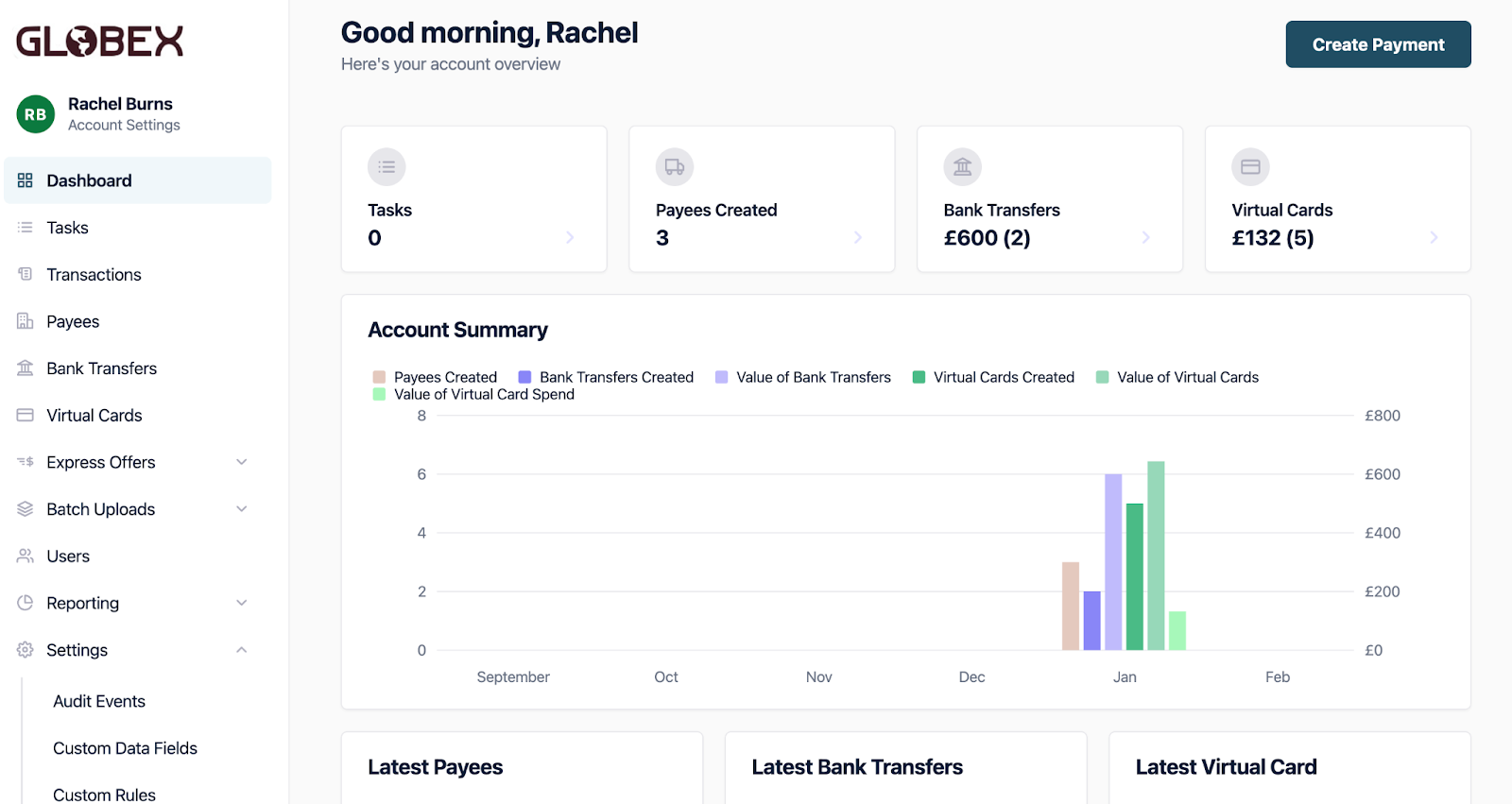
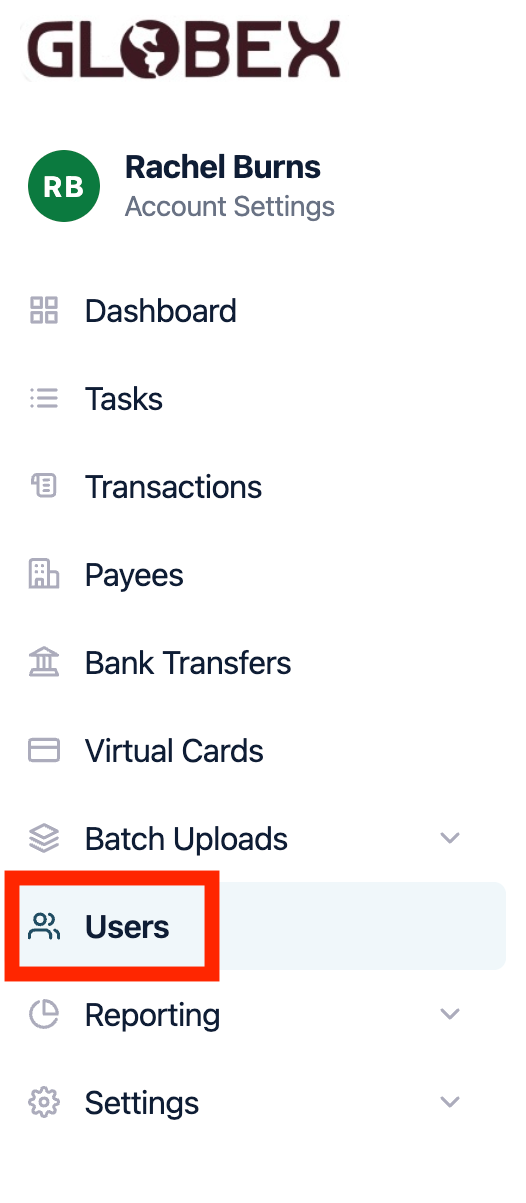
2. From the dashboard, from the left hand side menu select ‘User’.
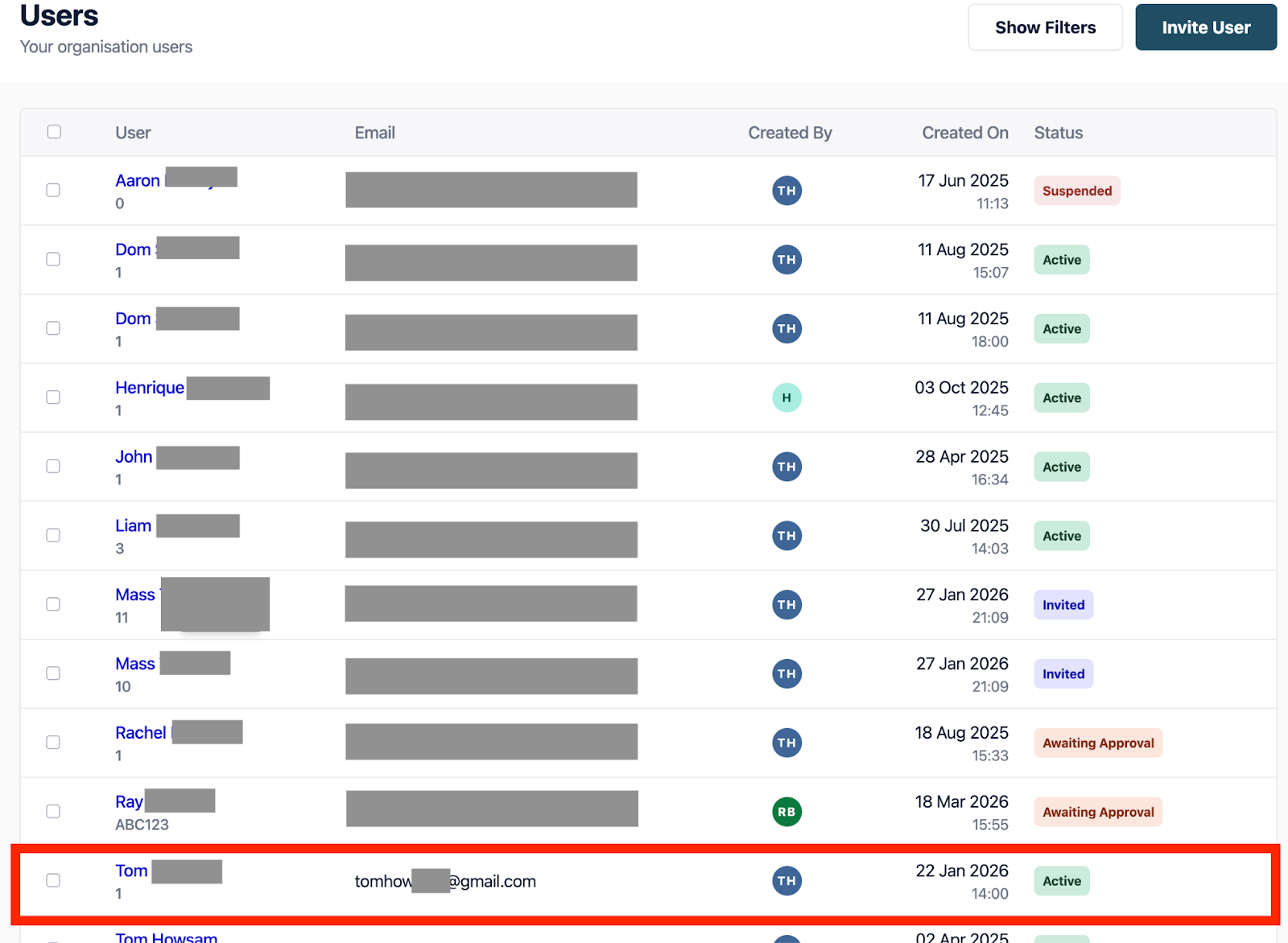
3. From here you will select the correct user from the list, or you are able to use the “Show Filters” to find the user you are looking for;
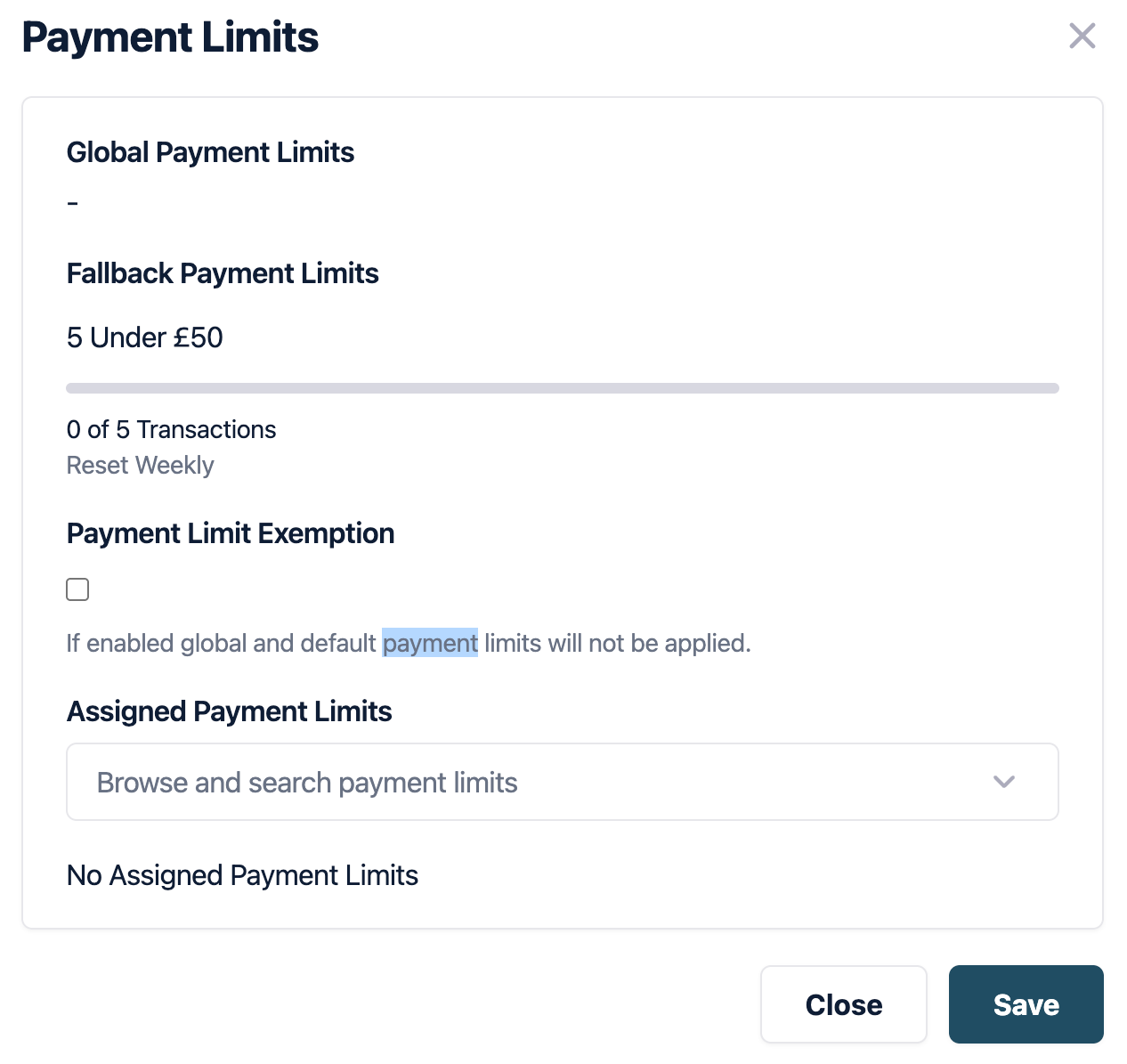
4. Once you have selected the user, you need to click into the edit box on the right handside. When you click into this a pop out will appear showing the assigned spend band;
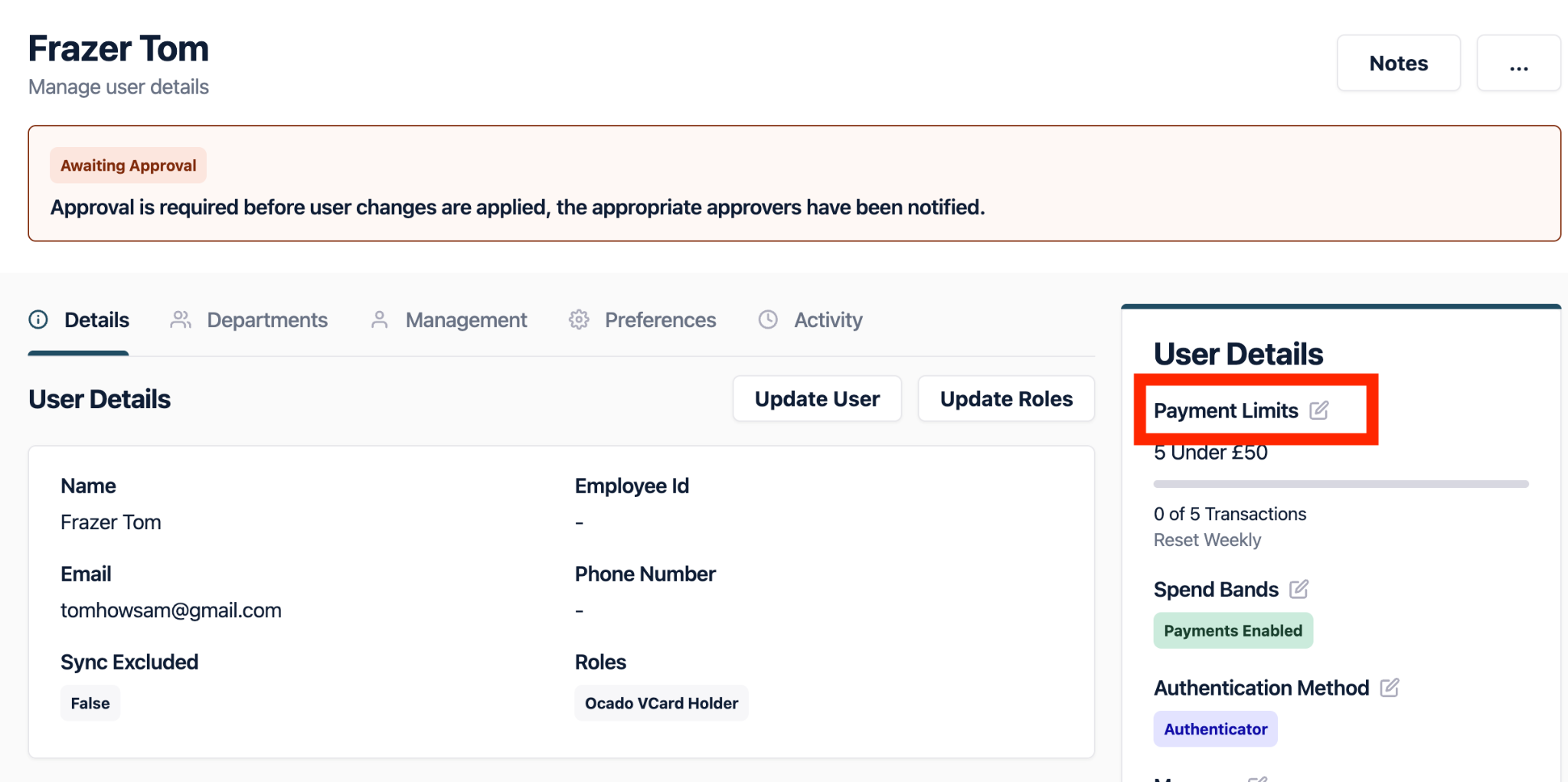
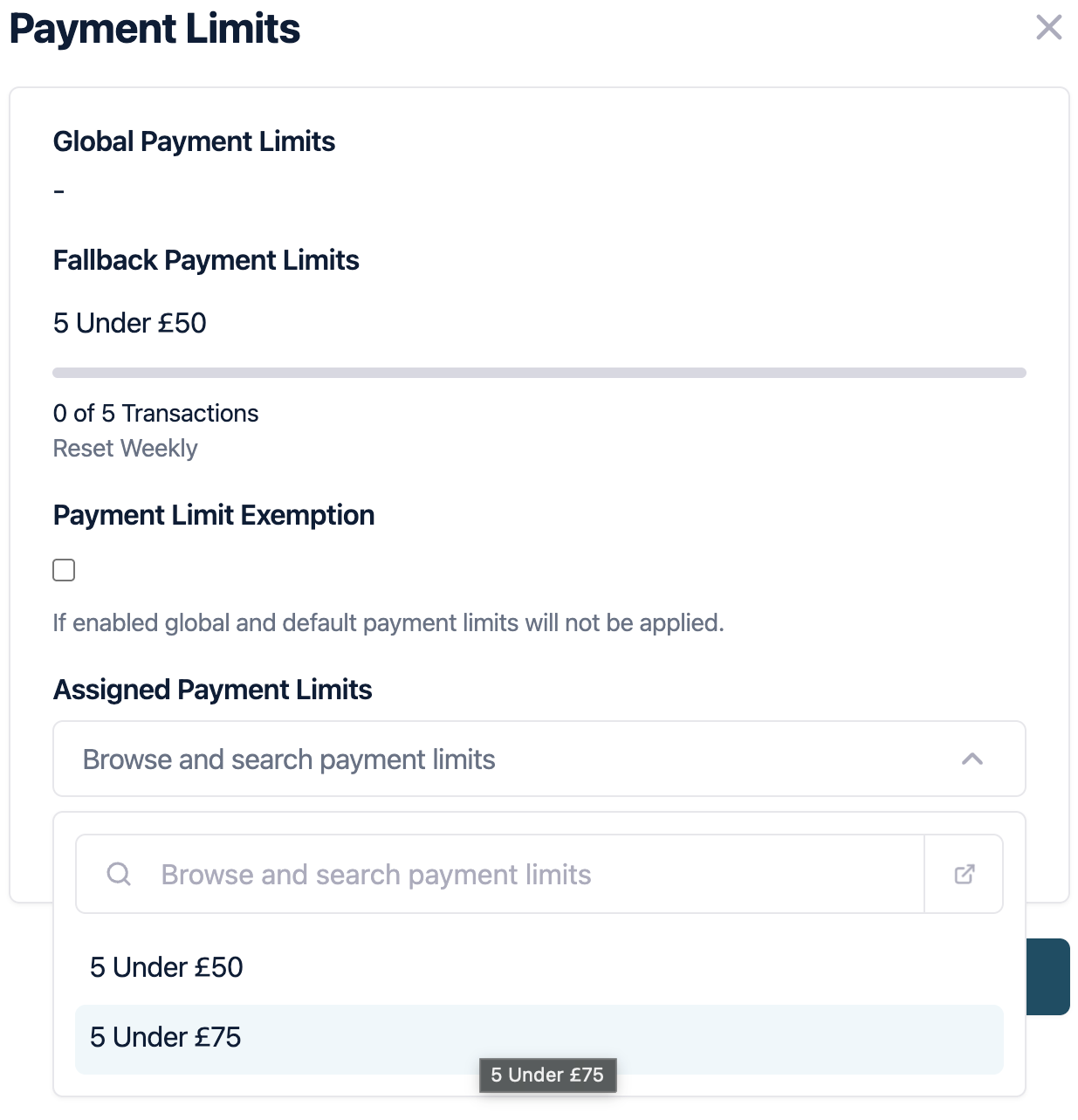
5. If you would like to update the spend limit for the user, please click on the “Browse and Search payment limit” for the drop down to appear. You will be able to select the spend limit you want to add.
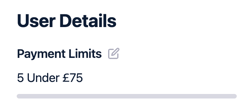
6. You will then see this is updated within the users details;
- [Help for Suppliers](https://help.paid.co.uk/knowledge/help-for-suppliers?hsLang=en#main-content)
- [About Paid for Suppliers](https://help.paid.co.uk/knowledge/help-for-suppliers?hsLang=en#about-paid-for-suppliers)
- [Account Details](https://help.paid.co.uk/knowledge/help-for-suppliers?hsLang=en#account-details)
- [Documents](https://help.paid.co.uk/knowledge/help-for-suppliers?hsLang=en#documents)
- [Payments](https://help.paid.co.uk/knowledge/help-for-suppliers?hsLang=en#payments)
- [Work](https://help.paid.co.uk/knowledge/help-for-suppliers?hsLang=en#work)
- [Help for Buyers](https://help.paid.co.uk/knowledge/help-for-buyers?hsLang=en)
- [Help for Paid Lite](https://help.paid.co.uk/knowledge/help-for-paid-lite?hsLang=en#main-content)
- [Manage Payees](https://help.paid.co.uk/knowledge/help-for-paid-lite?hsLang=en#manage-payees)
- [Manage Bank Transfers](https://help.paid.co.uk/knowledge/help-for-paid-lite?hsLang=en#manage-bank-transfers)
- [Manage Virtual Cards](https://help.paid.co.uk/knowledge/help-for-paid-lite?hsLang=en#manage-virtual-cards)
- [User Management](https://help.paid.co.uk/knowledge/help-for-paid-lite?hsLang=en#user-management)
- [Administration](https://help.paid.co.uk/knowledge/help-for-paid-lite?hsLang=en#administration)
- [Teams and Slack Notifications](https://help.paid.co.uk/knowledge/help-for-paid-lite?hsLang=en#teams-and-slack-notifications)
- [Authentication](https://help.paid.co.uk/knowledge/help-for-paid-lite?hsLang=en#authentication)
- [Reports](https://help.paid.co.uk/knowledge/help-for-paid-lite?hsLang=en#reports)
- [ID Verification](https://help.paid.co.uk/knowledge/help-for-paid-lite?hsLang=en#id-verification)
- [Road Map](https://help.paid.co.uk/knowledge/help-for-paid-lite?hsLang=en#road-map)
- [Legal Aspects](https://help.paid.co.uk/knowledge/help-for-paid-lite?hsLang=en#legal-aspects)
- [Express Payments](https://help.paid.co.uk/knowledge/help-for-paid-lite?hsLang=en#express-payments)
- [Accessing Support](https://help.paid.co.uk/knowledge/help-for-paid-lite?hsLang=en#accessing-support)
- [Legal Aspects](https://help.paid.co.uk/knowledge/legal-aspects?hsLang=en)
[](https://paid.co.uk/)
Paid Help Center
Copyright © 2025, Paid Technology Ltd.