
This guide assumes you have the correct administrator privileges, if you do not please contact your companies Administrator.
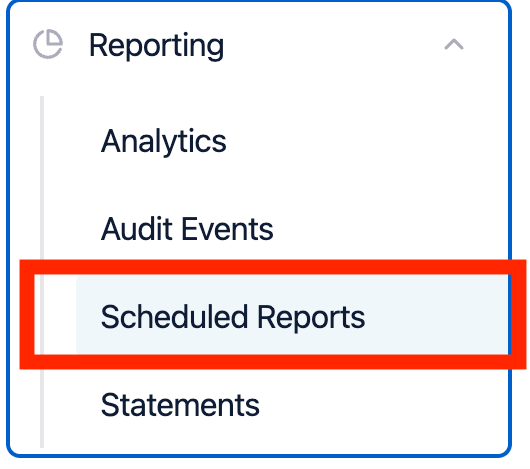
1. Log into your account from the dashboard, from the left hand side menu select ‘Reporting’.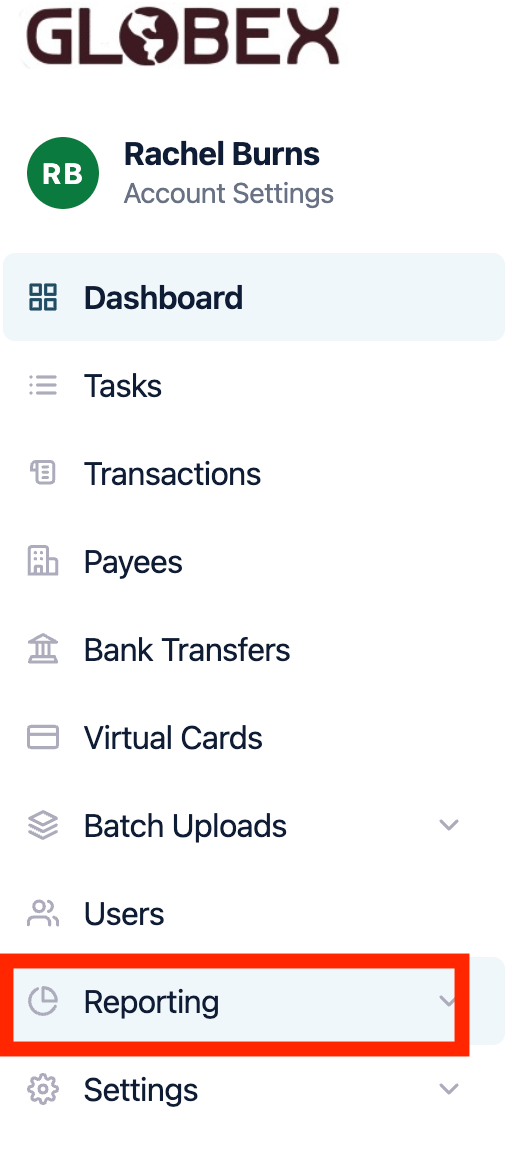
This guide assumes you have the correct administrator privileges, if you do not please contact your companies Administrator.
1. Log into your account from the dashboard, from the left hand side menu select ‘Reporting’.