---
title: How to Create User Roles.
description: This will show you how to create new user roles.
---
[Skip to content](https://help.paid.co.uk/knowledge/how-to-create-user-roles#main-content)
[Customer portal](https://help.paid.co.uk/tickets-view?hsLang=en)

Open main navigation
Close main navigation
- [Customer portal](https://help.paid.co.uk/tickets-view)
Advice and Answers from the Paid team
- There are no suggestions because the search field is empty.
1. [Help Center](https://help.paid.co.uk/knowledge?hsLang=en)
2. [Help for Paid Lite](https://help.paid.co.uk/knowledge/help-for-paid-lite?hsLang=en)
3. [User Management](https://help.paid.co.uk/knowledge/help-for-paid-lite?hsLang=en#user-management)
March 27, 2026
# How to Create User Roles.
## This will show you how to create new user roles.
### **Why would you want to do this?**
Managing user settings lets you update Basic Info, Role & Permissions, Department, Spend Limits.
You must have **administrator privileges** to update user settings. If you don’t have access, please contact your company’s **administrator**.
1. Log onto your account, which will take you to the dashboard;
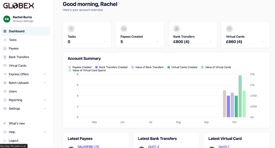
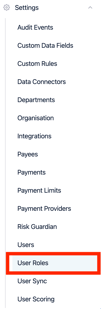
2. From there use the menu on the left hand side, navigate to “Settings”. From there you will need to select “User Roles”.
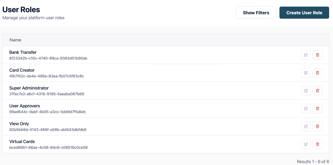
3. You can see the a variety of “User Roles” already created, to create a new role, you will need to select “Create User Role” button on the top right hand corner;
4. From the pop out on the right hand side you can create a new role by providing a name and selecting the permissions that you would like to to give to this new role;
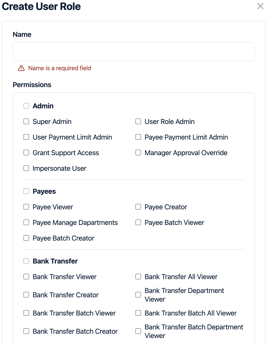
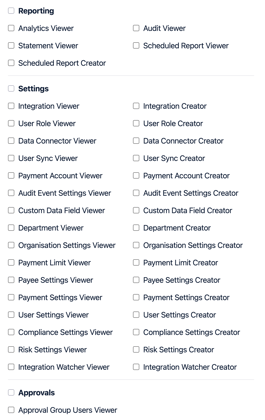
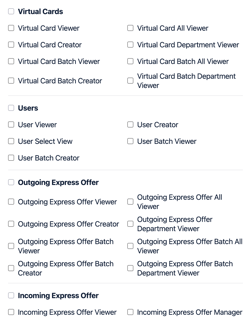
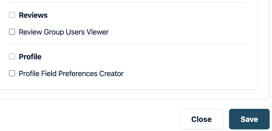
5. Once you have selected the permissions for the role you are created please select “Save”.
- [Help for Suppliers](https://help.paid.co.uk/knowledge/help-for-suppliers?hsLang=en#main-content)
- [About Paid for Suppliers](https://help.paid.co.uk/knowledge/help-for-suppliers?hsLang=en#about-paid-for-suppliers)
- [Account Details](https://help.paid.co.uk/knowledge/help-for-suppliers?hsLang=en#account-details)
- [Documents](https://help.paid.co.uk/knowledge/help-for-suppliers?hsLang=en#documents)
- [Payments](https://help.paid.co.uk/knowledge/help-for-suppliers?hsLang=en#payments)
- [Work](https://help.paid.co.uk/knowledge/help-for-suppliers?hsLang=en#work)
- [Help for Buyers](https://help.paid.co.uk/knowledge/help-for-buyers?hsLang=en)
- [Help for Paid Lite](https://help.paid.co.uk/knowledge/help-for-paid-lite?hsLang=en#main-content)
- [Manage Payees](https://help.paid.co.uk/knowledge/help-for-paid-lite?hsLang=en#manage-payees)
- [Manage Bank Transfers](https://help.paid.co.uk/knowledge/help-for-paid-lite?hsLang=en#manage-bank-transfers)
- [Manage Virtual Cards](https://help.paid.co.uk/knowledge/help-for-paid-lite?hsLang=en#manage-virtual-cards)
- [User Management](https://help.paid.co.uk/knowledge/help-for-paid-lite?hsLang=en#user-management)
- [Administration](https://help.paid.co.uk/knowledge/help-for-paid-lite?hsLang=en#administration)
- [Teams and Slack Notifications](https://help.paid.co.uk/knowledge/help-for-paid-lite?hsLang=en#teams-and-slack-notifications)
- [Authentication](https://help.paid.co.uk/knowledge/help-for-paid-lite?hsLang=en#authentication)
- [Reports](https://help.paid.co.uk/knowledge/help-for-paid-lite?hsLang=en#reports)
- [ID Verification](https://help.paid.co.uk/knowledge/help-for-paid-lite?hsLang=en#id-verification)
- [Road Map](https://help.paid.co.uk/knowledge/help-for-paid-lite?hsLang=en#road-map)
- [Legal Aspects](https://help.paid.co.uk/knowledge/help-for-paid-lite?hsLang=en#legal-aspects)
- [Express Payments](https://help.paid.co.uk/knowledge/help-for-paid-lite?hsLang=en#express-payments)
- [Accessing Support](https://help.paid.co.uk/knowledge/help-for-paid-lite?hsLang=en#accessing-support)
- [Legal Aspects](https://help.paid.co.uk/knowledge/legal-aspects?hsLang=en)
[](https://paid.co.uk/)
Paid Help Center
Copyright © 2025, Paid Technology Ltd.